
Junk Mail
To view messages classified as junk by the antispam system, locate the "Junk" folder
in your email client.
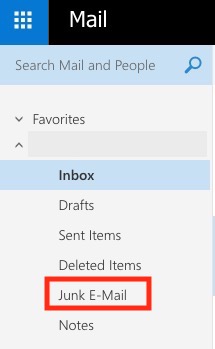
Messages in the junk folder are automatically deleted after 14 days.
Editing Junk Mail Options
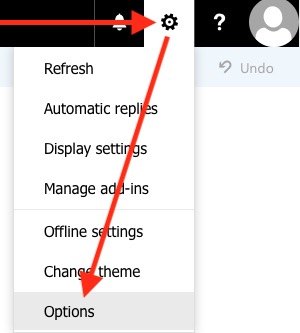
To open email options in webmail, select the gear icon and chose Options:
To open email options in webmail, select the gear icon and chose Options:
Adding Safe Senders and Blocked Senders
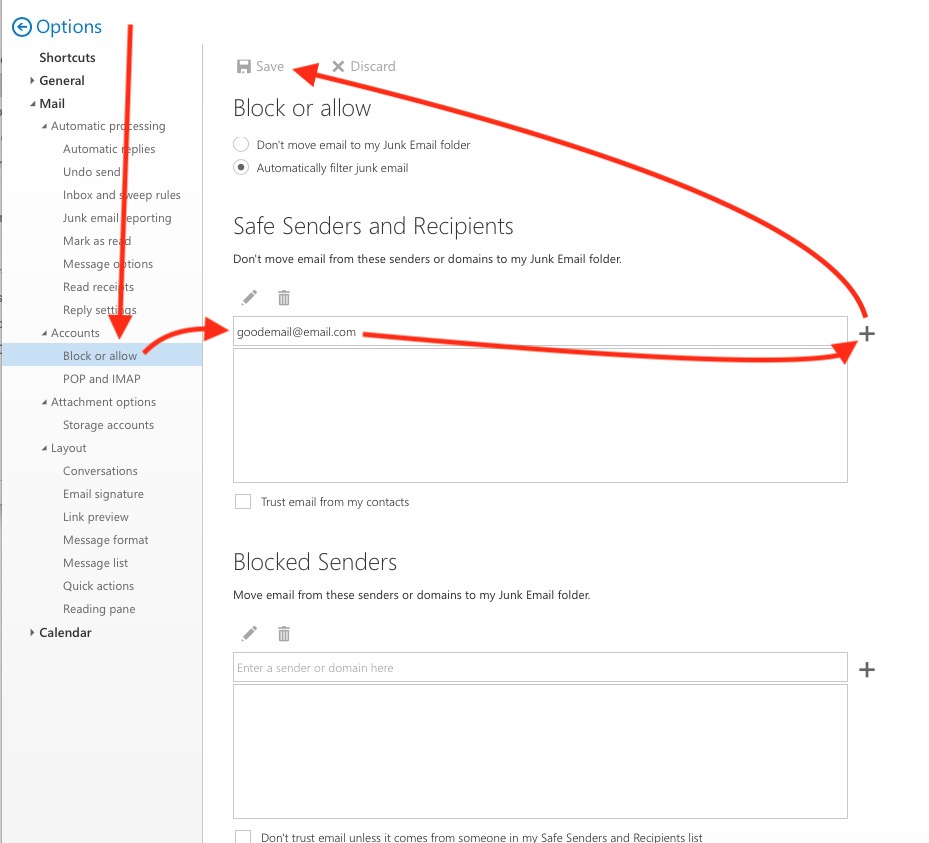
Select "Block or allow" and type the email address. Click "+" and Save
Select "Block or allow" and type the email address. Click "+" and Save
Editing or Removing an address from a Sender List
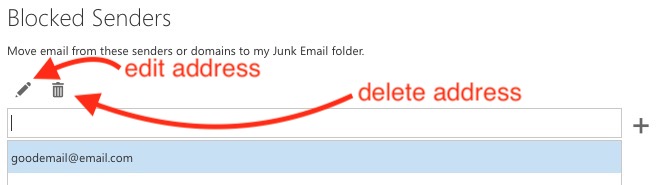
In the "Block or allow" page, select the desired email address. Click the edit (or delete) icon to update or remove the address. Be sure to click "Save" at the top of the page to apply the changes.
In the "Block or allow" page, select the desired email address. Click the edit (or delete) icon to update or remove the address. Be sure to click "Save" at the top of the page to apply the changes.
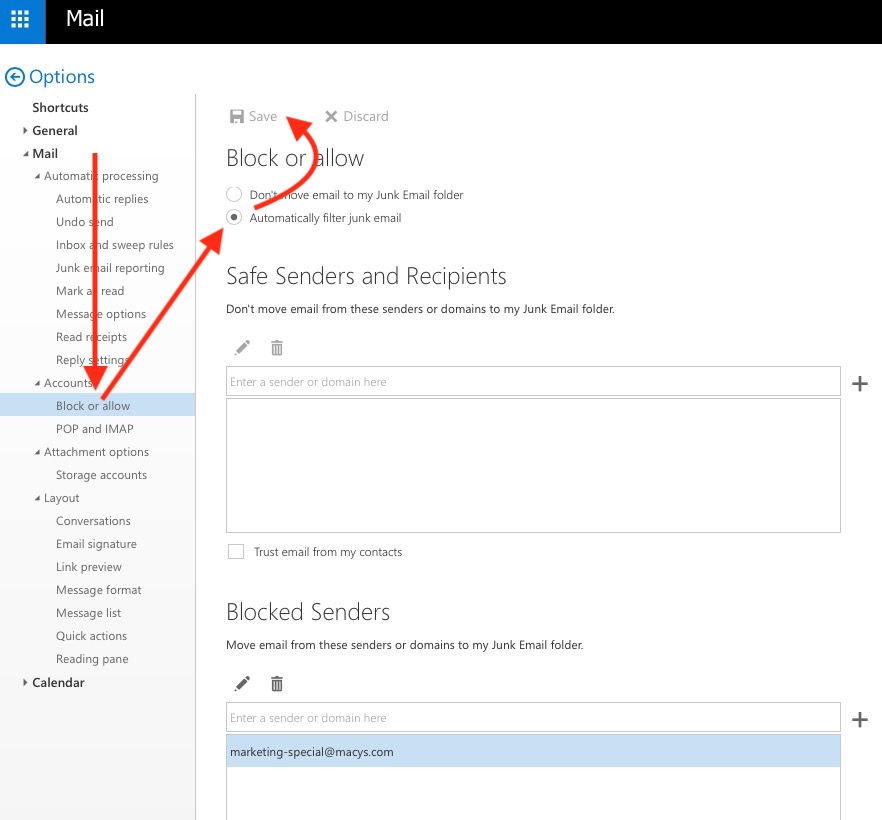
Ensure spam filtration is enabled
If Junk messages appear in the the Inbox, ensure that spam filtration is enabled in the email options:
If Junk messages appear in the the Inbox, ensure that spam filtration is enabled in the email options:
Differences with Outlook
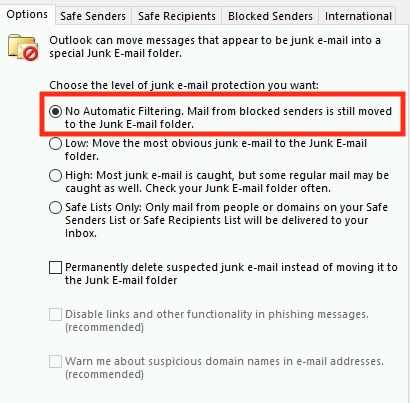
Although Outlook and Webmail are very closely related, the antispam setting "Automatically filter junk messages." is only available in the Webmail system. Although Outlook shares the "Safe Senders and "Blocked Senders" information, the Junk Options in Outlook, do change the operation of the antispam system.
Ensure that Outlook is set to "No Automatic Filtering" and that Webmail is configured as directed in the previous section: Ensure spam filtration is enabled